Friday, July 29, 2011

My Android Tablet – First Experiences


I got an Android tablet in late May (Asus Transformer) and have been using it a lot, so here are some of my initial experiences and observations.  First, I was looking for a device that retains the laptop experience, so the transformer, with dock/keyboard, was the choice. That configuration also increases the battery life, since the dock has a built-in battery.  Recent firmware upgrade diminished that value, because the dock refuses to deep sleep, so stays on and when not used.  This is fixable, but regrettably demands return of the unit for repair.  Leaving this “early-adopter” punishment aside for the time, what about the general tablet experience.

My goal is to replace a Windows laptop (Why? Because it is), so data productivity and data consumption need to be supported.  Data consumption, such as email, surfing, internet apps work really well.  From what I’ve seen, it is quite similar to the iPad, except that the app store for Android tablets is smaller.  Note that android apps are plentiful, but tablet-based apps (using more screen real-estate) are limited.  It seems that developers are taking a wait-and-see approach, perhaps until Android 4 appears late this year.  This will quickly change, with more tablet models and manufacturers appearing every week and sales increasing.  Several very good Android tablet optimized apps are available (like CNN), while other are strangely lacking (like New York Times).  The browser is similar to the Chrome browser on the PC, with enhancements for touch interface.  New browsers are appearing that offer additional touch functionality (like Dolphin).  Flash is enabled, so essentially all websites works.  Note that you can change the browser setting from tablet to desktop, which tells websites that they are dealing with a desktop browser, allowing more functionality.  Make sure you change this setting.

Productivity is another matter.  The tablet has great email functionality, including the ability to combine accounts (in my case, Outlook Exchange server and Gmail).  The office suite experience is much less satisfying.  My particular brand comes with Polaris suite, which is one of several Microsoft Office alternatives (such as Quickoffice, Docs to go).  These programs allow you to open and edit MO files, but not save in the new format (with the added “x” in the extension).  When opening these files in regular Office, they may contain alerts and have limited editing functionality.  So, just fine for a basic document (word, excel, ppt), but no seamless operation between Windows machine(s) and Android tablet.  Also frustrating is the synching of files.  Google Docs allows cloud access to files and synching, but no local files.  So, when you are not connected to WiFi, no access to files.  Obviously this is not satisfactory, which even GDocs admits (later this year offline capability will seemingly be reintroduced).  I use SugarSync for this purpose, allowing me to identify directories on my windows machine that are synched on the tablet.  This works most of the time, but not as smooth as synching among Windows machines.  SugarSync gives 5Gb free storage, so good for most purposes outside media files.

What about media?  Good music player and nice podcasts apps (such as Listen) are available, so no issues here.  I am using a free cover art downloader to spice-up the display.  Video seems to work fine, although I have not done more than just testing HBOGO and some websites.  Netflix streaming is still a no-go, but may be fixed with imminent Android 3.2 upgrade.  Video output uses a mini-HDMI, which worked fine on my LG TV in 1080i mode.  One also uses this port for powerpoint, but without a VGA-out connector this limits presentation use to newer projectors (with HDMI input).

A professional reason I am looking at tablets is their use as a field computing tool.  I have been experimenting with tablets since they first appeared, including military grade Xplore with Windows XP.  Predictably, Google Maps is well integrated into android tablets and the built-in GPS is excellent.  I used it to track locations in US, Turkey and Italy this summer, without any problems. Because GM caches maps (allowing >100Mb), I simply view the area of interest at the desired zoom level in advance, which is preserved when I no longer have WiFi (such as driving around).  A map cache mode (10mi radius) has just been introduced as well.  Stand-alone GPS apps give location and tilt information without WiFi as well, so it is also a tilt compass (yes, dip and dip direction, for the geologists among us). Some apps offer additional mapping functionality, such a Locus, but no user data input layer (yet) and ArcMap for Android remains in development.

So, all in all, my Android tablet is a nice device that clearly illustrates the future of mobile computing.  Growing pains are expected, and they are certainly there.  So why not get an iPad2, which is more mature?  I am not a fan of the Steve-knows-best culture, making decisions on functionality (add-ons) and connectivity (ports) that do not recognize user needs.  I expect, much like smartphones, that the open Android system will become the leading tablet OS, because of greater functionality, interconnectivity, manufacturer choice and pricing.  Let’s see how this plays out.

Saturday, March 05, 2011

Kindle or Nook? Or both.


Last Xmas I gave my wife a Kindle (the Wi-Fi only kind).  No set up, just turn on and nice-looking black text on off-white background appears.  I was never very interested in e-readers, but was I wrong.  It is really relaxing to read on them and wonderfully convenient to hold a small device instead of a hardcover tomb.  Having access to several books at any one time is also nice.  My strong interest in the device did not please the original recipient, so I had to let go of her gift.  Unfair.

I had been looking at Kindle and Nook, so decided to get a nook (Wi-Fi only) for myself.  Now I can compare these two mainstream e-readers.  There are differences, but both are perfectly fine book readers.  The kindle appear a touch brighter (contrasty), although this is not really visible in normal light conditions.  Page turning is about as fast for both, after the 1.5 Nook software upgrade (came soon after I first connected with BN’s nook site).  The differences are under the hood and in the supporting interface.  The Kindle has a button keyboard for notes, and apps that are reached through a basic pop-up window.  The immediate advantage is a battery life that is vastly better than Nook’s.  The Nook offers a more stylish color touchscreen bar that offers a much nicer experience, but demands more electrons.  I found that the Kindle lasts ~3 weeks with normal use and the Nook ~1 week on a battery charge.  Quite different, reflecting the Nook interface that turns on and off like a phone screen.  I prefer the Nook’s navigation bar, but the battery life makes the Kindle more portable and less distracting; Kindle is my wife’s preference.
The readers both have apps that are useful and fun.  Each has a basic web browser that is hard to navigate, but allows internet access.  No Flash, video and such, but basic mobile sites work well.  You can install games on both.  I bought Sudoku for the Kindle, which came free with the Nook.  Works pretty well on both, but uses more battery on Nook because of the navigation bar (doubling as keyboard).

So, which one is better?  It really does not matter if you just want to read a book or paper.  The battery life of Kindle is best and it has a slight edge with brightness.  The amazon format of books, however, is limiting.  No epub and pdf format and thus no public library downloads.  I have Calibre which takes care of file conversions, so the format issue between units is resolved.  The download of papers and magazines from Calibre, by the way, is a great feature that even allows emailing your Kindle for a small fee (the Nook and Kindle are otherwise attached to the PC for uploading).  Calibre is worth the shareware donation.

My wife and I each read 3 books and have turned to reading more than in recent past.  I do not miss the book, other than its tactile aspect, because I never randomly page through a novel.  It does not replace web browsing by any stretch and reading the paper is only ok for full articles.  Some friends have turned to iPad and Galaxies as their readers, but a backlit screen cannot compete with e-ink when it comes to eye strain.  Having a dedicated reader also removes the distractions a portable computer has, such as email, text pop-ups.

I am an e-reader convert.

Thursday, November 18, 2010

Facebook's Page and App functionality

Over the last couple of weeks I looked into the use of Facebook in the college learning environment.  I won’t go into my motivation, except that Facebook is, of course, today’s It application.  I abandoned Twitter as an educational platform.

Two paths are available, called Page (also Fan Page) and App.  You’ll find lots of info on this and examples from a quick search, although some write-ups are a little dense.
A Page is something everyone can create in Facebook’s environment, while an App is hosted locally by the owner’s server.  Practically, a Page is limited by Facebook’s built-in (but growing) functionality, while an App only uses aspects of Facebook with modules, but otherwise its functionality is not restricted.  

Today’s Facebook Pages allow customization that mostly remove the need for an Apps, it seems.  On a Page you can add tabs that open windows that use fbml, which is Facebook’s html.  You can simply code in html (like Dreamweaver) and remove the <body> and </body> commands, and paste the rest of the html code into the Facebook tab.  You’ll need only little more knowledge than this (and many explanations via Googling), unless you do not know what html code is.
My example GC page is: http://www.facebook.com/pages/U-M-Global-Change/126421510748629.  Notice the personalized tabs.

An App allows you to make your own website and open it in Facebook (Facebook uses the iframe protocol for this, if you want to know).  The advantage is that you do not need to do anything but adjust the size of your website so that is fits the Facebook window (~720px).  You can keep your site as is and add Facebook modules such a comments, links, notes.  You need to register the App with Facebook (returning a unique ID) and tweak the canvas page by adding the site’s address.  Oddly, the local site is only identified by its folder, not file name, so make sure the default page is index.html or index.php.  My corresponding GC App is here: http://apps.facebook.com/um-globalchange/.  I did not include any Facebook modules in this page (other than a link icon), but you can click on links in that window just like in a browser.

What works best?
For now (and convenience), I stick with the Page option, because the App has higher maintenance demands when including Facebook modules, and relies on your own server’s availability (and security limits).  It seems that posting is better controlled by App than Page (hence some odd postings on my personal page), but this is at worst only inconvenient for one’s friends (and perhaps even informative for one’s friends).

I’ll try this for a while …..


Tuesday, November 16, 2010

Population demographics

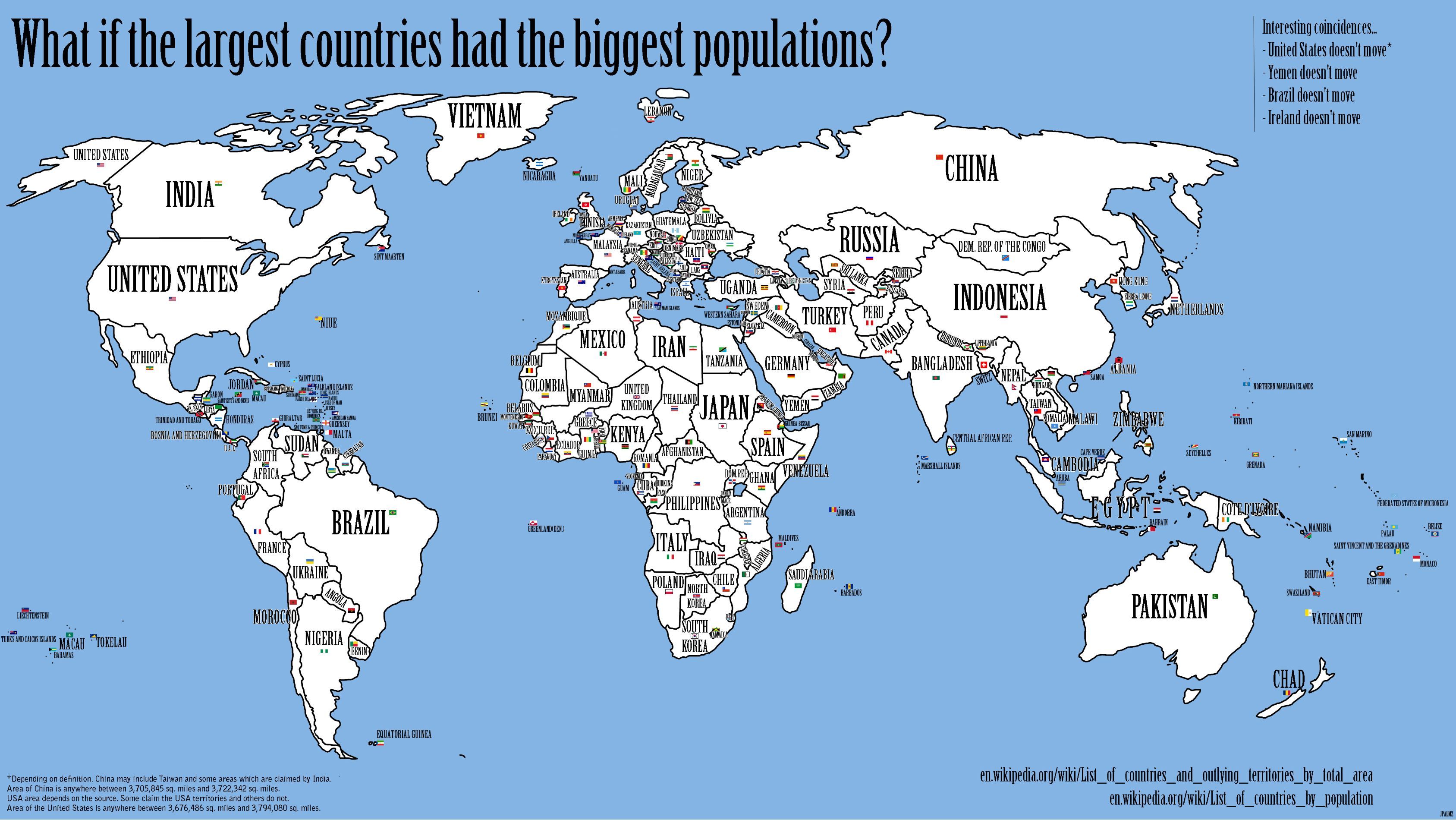
I have started to work on a set of lectures on population dynamics and I find this image. Brilliant approach and eye opening. Instead of using changing country sizes by population ("balloon maps"), this shift populations to counties by approx area.
c6Agr.jpg (3375×1900)